Session 1 | The AWS Ecosystem, IAM, and S3

Welcome!
Open up the AWS Mangement Console and login to your AWS account using the admin user (NOT ROOT USER) you created in the setup.

Introductions
Answer the following questions:
- What is your affiliation with Turing? Cohort, module, program
- What do you know about AWS? It's 100% fine if the answer is "nothing!"
- And for fun: What is your current phone or laptop wallpaper?

Logistics and Expectations
- This course will explore foundational concepts for a variety of AWS services. Because we are cramming a lot of information into a small amount of time, we will not always have time to deeply explore all questions. Links to related concepts are embedded within the curriculum. We strongly recommend being present during the instruction and postponing your link-exploration until after class.
- There are many things we won't cover in this course. For example: IPv6 (mainly for IoT devices), HTTPS and DNS (because both involve extra costs), intricacies of SSH, etc. are topics that are beyond the scope of the exercises in this course. If you'd like more information when those terms arise in the context of the AWS services we cover, just ask and we'll be happy to pass along resources and/or documentation that you can use in your self-study.
- Use the chat box to jot down questions you have during the class.
- It's ok to be overwhelmed by the vastness of the AWS ecosystem and the fine-grain control that AWS gives you. When first starting out, stick with the defaults that AWS provides.
- Play your part in creating a safe and welcoming learning environment for your classmates. A fundamentals class is not the right setting to show off.
- We will use code in this course, but coding is not the focus of the course. For the code samples we use, we'll do a high-level walk through before integrating AWS services.
- This course is a hands-on approach to learning fundamental AWS services. The content of this course will provide a solid foundation for continuing to pursue either the Cloud Practitioner, Solutions Architect Associate, or Developer Associate AWS Certification Exam.
Theory vs. Hands-On
During this course, we'll alternate between discussing theory/facts and actually diving in to see how things work. The theory and facts portions are relevant to the certification exams in addition to having the foundational knowledge to start building using AWS services.
Yellow boxes, like the one below, indicate an exercise we'll all try together.
Together: Example
Instructions for example exercise.
Teal boxes, like the one below, indicate an exercise that you'll try either independently or with classmates in a breakout room.
Try It: Example
Instructions for example exercise.
Additional Resources

Agenda and Goals
- Understand the shift from on-premise computing to cloud computing
- Create an IAM user and differentiate between IAM users, groups, and policies
- Upload objects to S3 buckets using both the console and AWS CLI
- Host a static website using S3
- Create a CloudFront distribution to reduce latency
- Homework: Explore the AWS SDKs and CLI tool

Intro to Cloud Computing
From AWS:
"Cloud computing is the on-demand delivery of compute power, database, storage, applications, and other IT resources via the internet with pay-as-you-go pricing."
Back in the day™, businesses that needed computing resources would host their own on-premise data center, complete with physical servers and networking capabilities for employees to be able to access resources. The company would have to predict and purchase the necessary hardware and software. In addition, an in-house IT team would be tasked with maintaining, upgrading, securing, and troubleshooting the equipment.
Cloud computing service providers like AWS eliminate the need for these processes to happen on-site.You can think of this in the same way that you think of any metered bill that you pay (electricity, gas, water, etc.). In this way, an organization does not need to consider time or capacity when scaling their computing needs.
AWS and other cloud providers such as Microsoft Azure, Google Cloud Platform, etc. own and service large data centers distributed across the world. In this way, an AWS customer can provision and gain access to resources almost instantly.
Some of the benefits of AWS Cloud Computing include:
- Faster innovation
- Elasticity (for example: retail with upcoming sale) and scaling
- Lower latency
- Cost savings
During this 12-hour AWS Fundamentals course, we'll use the following cloud-based AWS services:
- EC2
- Lambda
- Elastic Beanstalk
- RDS
- DynamoDB
- CloudFront
- API Gateway
- S3
- Identity Access Management
- Code Pipeline
Additional Resources

Interacting with AWS
There are three ways to access AWS services:
- AWS Management Console: browser interface
- AWS CLI: command line interface
- AWS SDKs: code packages in a variety of languages
Compare the console, SDK, and CLI interfaces for creating a DynamoDB table:
From the web console:

From the CLI:
(From AWS documentation)aws dynamodb create-table \
--table-name MusicCollection \
--attribute-definitions \
AttributeName=Artist,AttributeType=S AttributeName=SongTitle,AttributeType=S \
--key-schema AttributeName=Artist,KeyType=HASH AttributeName=SongTitle,KeyType=RANGE \
--provisioned-throughput ReadCapacityUnits=1,WriteCapacityUnits=1
From the Ruby SDK:
(From AWS documentation)require 'aws-sdk'
dynamodb = Aws::DynamoDB::Client.new(region: 'us-west-2')
params = {
table_name: 'Movies',
key_schema: [
{
attribute_name: 'year',
key_type: 'HASH'
},
{
attribute_name: 'title',
key_type: 'RANGE'
}
],
attribute_definitions: [
{
attribute_name: 'year',
attribute_type: 'N'
},
{
attribute_name: 'title',
attribute_type: 'S'
},
],
provisioned_throughput: {
read_capacity_units: 10,
write_capacity_units: 10
}
}
begin
result = dynamodb.create_table(params)
puts 'Created table. Status: ' +
result.table_description.table_status;
rescue Aws::DynamoDB::Errors::ServiceError => error
puts 'Unable to create table:'
puts error.message
end
Most of what we'll do in these sessions will involve working through the AWS web console. The web console provides clear context and explanations for the options available on each AWS service, whereas the CLI and SDKs are less transparent and slightly harder to navigate when first learning.
Additional Resources

General AWS Vocabulary
Let's learn a few general AWS vocab words. All other section-specific vocabulary for the remainder of the course will be marked like this.
- Availability Zone: An availability zone is a physical structure containing the computing resources necessary for AWS services. You can picture an availability zone as a giant warehouse filled with computing resources. Availability zones are designed for high availability and redundancy in order to continue working in the event of a disaster.
- Region: A region is a geographical area comprised of multiple availability zones (generally three). Within the region, the availability zones are physically separated from each other so that disasters don't impact all availability zones in a region. Each region has a corresponding code. For example, Northern Virginia is
us-east-1, whereas Paris iseu-west-3. The image below (from AWS region and AZ documentation) shows the relationship between AZs and regions:

All regions operate fairly similarly; however, you may find some differences in pricing and service availability. In addition, you may choose a specific region for lower latency or regulatory compliance. For our exercises in this class, we'll be using the N. Virgina region (us-east-1) since that's where AWS tends to release most of its features first, and therefore has the largest number of services available.
The image below (from AWS Global Infrastructure documentation) shows the current and planned regions.

Additional Resources

IAM: Identity Access Management
The AWS IAM console gives you a way to manage who or what can use your AWS resources.
IAM Users can be used for either people or applications. User accounts can be granted console and/or programmatic access depending on what you'll need the account to do. If granted programmatic access, the account will have access tokens that can be used in code.
AWS recommends that you do not use the root account for anything and delete the root access keys. In the setup video, you created an admin user. This is what AWS recommends for security purposes.
IAM Groups are used to organize user accounts by function. For example, you may create a group called "developers" and grant that group access to EC2, S3 and Elastic Beanstalk. Your "database admin" group might have access to RDS, and your "data science" group would be able to access Redshift and Elastic MapReduce.
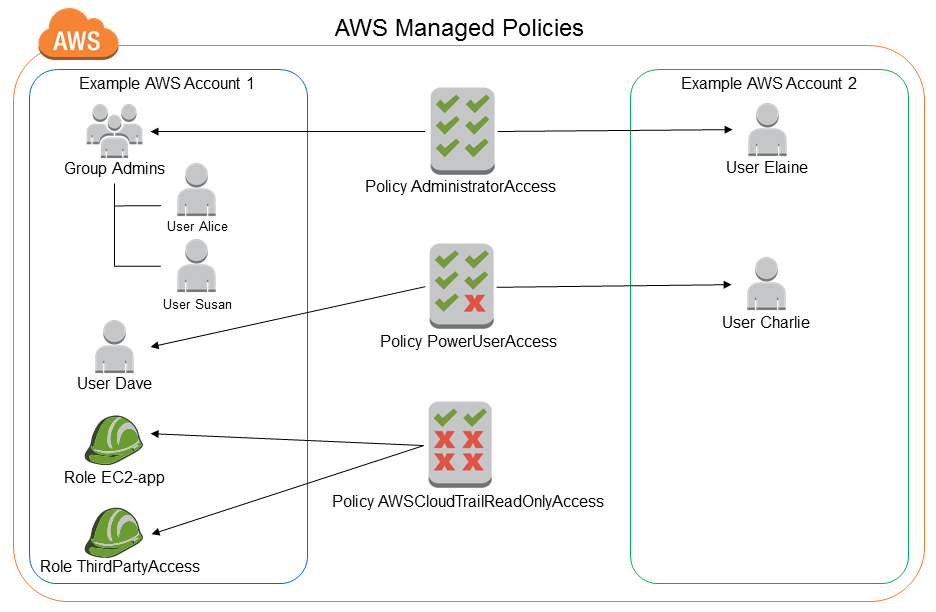
An IAM policy is a document that can be associated with a user, group, or role. IAM policies are written in JSON syntax and define permissions for AWS services.
Below is a diagram from the AWS IAM Policy documentation that shows how users, groups, and policies work together:
Policy Syntax
Here's an example of an AWS policy permitting all actions on all S3 resources:
{
  "Version": "2012-10-17",
  "Statement": [
    {
      "Sid": "Stmt1563910191687",
      "Action": "s3:*",
      "Effect": "Allow",
      "Resource": "*"
    }
  ]
}
- Version: The version of the AWS policy language. The newest version of this language is 2012-10-17.
- Statement: An array containing groupings for the following elements. A policy can contain more than one statement.
- Sid: This is an arbitrary name for your statement. You can either choose to keep the pre-generated Statement ID, or you can create your own name.
- Action: What actions should this user be able to take? Note: * indicates everything and can be used in conjunction with a specific action. For example:
s3:List* - Effect: Are we allowing or denying permissions?
- Resource: Which AWS service or entity does this apply to? AWS resources will always start with
arn:aws:For example, the ARN for an S3 bucket might bearn:aws:s3:::my-first-bucket.
Let's look at one more example:
{
  "Version": "2012-10-17",
  "Statement": [
    {
      "Sid": "Stmt1563911150715",
      "Action": [
        "s3:GetObject",
        "s3:PutObject"
      ],
      "Effect": "Allow",
      "Resource": "arn:aws:s3:::my-first-bucket"
    }
  ]
}
AWS provides pre-defined policies for common use cases called AWS managed policies. We will be using AWS managed policies during this course. You can also create your own policy documents using the Policy Generator or Visual Policy Editor. The policies created with these tools are called customer managed policies.
Try It: IAM Policies
Open the two example policy links below and scroll to the JSON. You'll notice that these policies have multiple statements, whereas the example from above only had one statement in the statements array.
With your breakout room, discuss: If we were to assign these policies to users, what would they be able to do? Does your interpretation match the description at the top of the page?
Additional Resources

S3 Overview
Released in 2006, AWS Simple Storage Service (S3) provides object-based cloud storage with virtually no capacity limit.
Storage Classes and Pricing
AWS S3 offers multiple types of storage, called storage classes. These storage classes differ in terms of pricing, latency, availability, and durability.
Try It: Storage Classes
Open the S3 Storage Classes documentation from AWS.
With your breakout room, discuss: What are the main differences between Standard, Standard One Zone Infrequent Access, and Glacier? Use both the individual descriptions and the performance chart near the bottom.
Done? Look at the specifications for remaining three storage classes.
Pricing for S3 is based on both storage and bandwidth (data transfer). AWS provides a calculator for estimating your total monthly cost based on parameters you enter.
Structure
S3 is organized using buckets (think of these like folders) and objects (files and their related metadata). An account is limited to 100 buckets by default, but you may request more through Amazon. Individual objects within the buckets can be between 1 byte to 5 terabytes.
Bucket names must be unique across all buckets in the S3 namespace and can contain lowercase letters, numbers, and hyphens.
Buckets can contain what we might think of as "folders", but it's important to remember that a "folder" in S3 is simply part of an object key name.
Consistency Models
A consistency model explains what data will be accessible after specific events happen. S3 provides read-after-write consistency for new PUT requests, and eventual consistency for DELETE and PUT requests of existing objects.
Security
By default, data stored in S3 is not encrypted at rest; however, you can choose to encrypt your S3 objects either client-side (encrypted before you send) or server-side (encrypted by AWS while stored).
S3 supports three ways to encrypt your data at rest.
If you choose to encrypt the objects in your bucket, AWS now recommends enabling default encryption at the bucket level instead of flagging each individual object for encryption on upload. Default encryption can be enabled from the "Properties" tab in the S3 bucket. When enabling default encryption on a bucket, the setting will only apply to newly uploaded objects. Existing objects in the bucket will not be encrypted.
Versioning
S3 supports object versioning where every version of an object is stored. If you choose to delete an object, a "delete marker" will be placed in the version history, but that object will not actually be deleted. Versioning itself doesn't cost anything extra; however, since you will be storing more data, enabling versioning could end up costing more due to storage costs.
Bucket Access
Bucket access on S3 can be slightly confusing because of the multiple ways to grant access.
- Block public access: When creating a new bucket, public access options are blocked by default. In the management console, you will have the opportunity to uncheck this box. Note: Unchecking this box does not mean that your bucket it public. It only means that your bucket can be public if you use either a bucket policy or an Access Control List (ACL).
- Bucket policies: Bucket policies are similar to IAM policies in that they grant permissions. However, while an IAM policy is associated with a specific user, role, or group and can contain permission statements about multiple AWS services (such as S3, EC2, etc.), a bucket policy grants permissions only on a specific S3 bucket.
- Access Control Lists: ACLs for S3 are considered legacy and AWS does not recommend using them anymore for most purposes. However, they are still supported. You can read more here.
In general, a good rule of thumb is to use an IAM policy if you're trying to answer the question "What is this user allowed to do in AWS?" and a bucket policy if you're asking "Who should be able to access this bucket?"
Together: S3 Buckets and Objects
Let's head over to the AWS console where we'll walk through creating a bucket, deciphering permissions, and uploading an image to a bucket. We'll make this image publicly accessible from its URL.
Additional Resources

Static Sites on S3
S3 is a great tool for hosting static sites (including frontend only projects). In this section, we'll deploy a very simple website with an html file, css file, js file, and an image.
For this section, you'll need to download and unzip the project files.
Together: Hosting a Static Site on S3
- Create a bucket. Note: While we will not be buying a domain name for our static site in this class, it's important to note that if you want to do that, your bucket name must match the name of the domain. (Example: myfirstcoolawswebsite.com)
- Keep all of the default settings in "Configure options."
- Uncheck the "Block all public access" checkbox.
- Click "Create Bucket".
- Upload the files that you downloaded. There should be index.html, error.html, style.css, app.js, and turing_logo.png.
- Do not change any permission settings in the upload dialog box. We'll do this with a bucket policy.
- Once the files are uploaded, click on the "Properties" tab.
- In the Static Website Hosting box, select "Use this bucket to host a website" and enter index.html and error.html in the first two boxes.
- If you try to access your website right now, you'll see a "403 Forbidden" because we haven't specified that our objects should be public. Click on the "Permissions" tab and select "Bucket Policy".
- Use the policy generator to create an S3 policy that allows all principals (*) the ability to GetObject from the bucket. You'll need to click back over to S3 to find your bucket's ARN. It should look something like arn:aws:s3:::bucketname. Make sure to add /* on the end so that it's referring to all objects within the bucket, not the bucket itself.
- Generate the policy, then copy that policy and paste it into the Bucket Policy editor back in S3.
- Save it, and refresh your page.
Try It Bonus: Fetching image from another bucket
Right now, you have a button "Add Image" that is non-functional. Open up the app.js file from the files you downloaded, and modify the code to fetch the image you uploaded from our earlier example. Don't forget to re-upload your new version of app.js to your website bucket.

CloudFront
CloudFront is AWS's content delivery network that exists to decrease latency when serving content to your users. CloudFront combines caching of static content (such as images, CSS, JS, and images) at edge locations with the accelerated speed and stability of the AWS's Global Network (a private IP network) for dynamic content to improve performance and delivery for end users.
To contrast this with a more traditional approach: in the past, you would have your content stored in one location somewhere in the world. No matter where your users were located, they would have to request the content from that one server. Users located farther away from the server might experience longer delivery times.
AWS Edge Locations, or "Points of Presence," are a collection of almost 200 data centers throughout the world. Below is AWS's official map of Edge Locations:

When a user requests content that is backed by CloudFront, the request is routed to the user's nearest edge location. If the content is already cached in that edge location from a previous request by another user, the response is sent back, decreasing the latency had the user requested directly from the origin. If the content has not been cached, the request is fowarded through AWS's backbone network to the origin (this could be an S3 bucket or a server). When the response is sent back, the data is cached at the edge location for either 24 hour whatever is specified by the customized time to live (TTL) response header. This process also reduces the load directly hitting the origin.
When the TTL has passed, CloudFront forwards the request to the origin, and the origin responds with either a 304 (not modified, in which case CloudFront sends back the cached content), or the origin sends back a 200 status code with the latest version of the content.
Together: CloudFront Request/Response
The AWS CloudFront diagram to the right shows the process of a user requesting content that is served through CloudFront. Let's walk through the possible paths.

Creating a CloudFront Distribution
In order to take advantage of edge locations and AWS's backbone network, we need to create a CloudFront Distribution which you use to declare the origin of the content and configure settings for how you want the content distributed.
Together: Creating a CloudFront Distribution
We'll create a distribution for our static site following these steps:
- Open CloudFront from the AWS services panel.
- Click "Create Distribution" and select Web.
- Choose the url of your S3 bucket for the Origin Domain Name.
- Check "yes" for Restrict Bucket Access.
- Select "Create a New Identity".
- Allow CloudFront to read from the bucket by selecting "Yes, Update Bucket Policy".
- In "Default Root Object", type
index.html - We will leave the rest of the settings on the defaults.
- At the bottom, click "Create Distribution". This process can take between 10-60 minutes.
- In the meantime, head back over to your S3 bucket policy to see how it's changed. In order to restrict access to just the Cloudfront identity, remove the original policy statement that allowed public access to the objects in the bucket. Once you save, you should not be able to access the website from the original link. You can also remove "Static Website Hosting" in the Properties tab.
Cloudfront doesn't automatically allow you to inherit the error page behaviors that you set up in the S3 console. Instead, you'll need to click on the "Error pages" tab and set up your custom error response there.
Additional Resources

Cleanup
The AWS free tier gives you access to many resources for free, but it's important to remember to tear down anything you don't plan on using further in order to avoid possible charges. Here's what you'll need to do in order to delete all of the resources we used today:
- Go to your CloudFront console and disable your distribution. This process will take several minutes.
- On the left-hand panel of your CloudFront console, click "Origin Access Identities" and delete the CloudFront identity that we created to give CF permission to access our S3 bucket.
- Go to your S3 Management Console and delete both of your buckets.
- IAM doesn't cost anything (even after your 12-month trial expires), so there's no need to delete any user accounts or groups there.

Recommended Self-Study: S3 Through AWS SDKs
AWS provides Software Development Kits (SDKs) for many languages, including JavaScript, Ruby, Go, Python, etc. Though coding is not the focus of this course, we recommend taking some time to interact with the AWS services programmatically through one or more of the SDKs. The exercises below will get you started with some of the basic S3 functionality.
Each of the SDKs uses the credentials that you set when you configured your AWS CLI. Therefore, you do not need to use environment variables (although you may do that if you choose to).